


Applying Effects
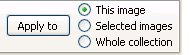 SnapTouch enables
you to work with the whole image collection as if it was a single image. It means that having configured the Desktop view
and specified the options for the current image you will be able to apply these options to the whole collection at once and view other
images according to the specified settings. But not all effects can be applied to the whole collection without thinking properly, so you
can specify whether to apply the effect to the current image, to the selected images or to the whole collection on the settings tabs.
SnapTouch enables
you to work with the whole image collection as if it was a single image. It means that having configured the Desktop view
and specified the options for the current image you will be able to apply these options to the whole collection at once and view other
images according to the specified settings. But not all effects can be applied to the whole collection without thinking properly, so you
can specify whether to apply the effect to the current image, to the selected images or to the whole collection on the settings tabs.
Before applying a number of effects (rotation, cropping and mirroring modes) you can view the result in the preview window. To enable this mode right click and select the "Show Preview" menu item. You can also enable this mode through the main program menu: "View"->"Show Preview".


