

Creating a Collection
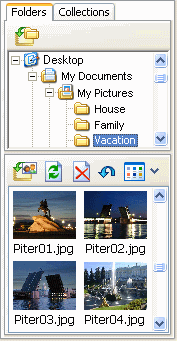
Use the file tree in the upper right-hand corner of the program's main window to locate and select the image files you want to include in the collection. When you select a folder, all image files contained in it are displayed in the bottom right-hand corner of the main window.
 To add in the collection an entire
folder, select it and click the "Add Folder to collection" button.
To add in the collection an entire
folder, select it and click the "Add Folder to collection" button.
 To add specific files in the
collection, select them and click the "Add selected photo to collection" button.
To add specific files in the
collection, select them and click the "Add selected photo to collection" button.
 You can also specify the preview
style: large/small icons, list or thumbnail.
You can also specify the preview
style: large/small icons, list or thumbnail.
Use the "Collections" folder in the file tree pane to open an existing collection. This folder provides quick access to all your SnapTouch collections.