

Cropping Digital Photo
It often happens that a good shot has some artifacts at the edges. SnapTouch can help you solve this problem. You can frame the image preserving its original aspect ratio.
 The basic approach
is generally the same. Select an image,
specify the new aspect ratio and size (it will depend on the aspect ratio) and apply the effect.
The basic approach
is generally the same. Select an image,
specify the new aspect ratio and size (it will depend on the aspect ratio) and apply the effect.
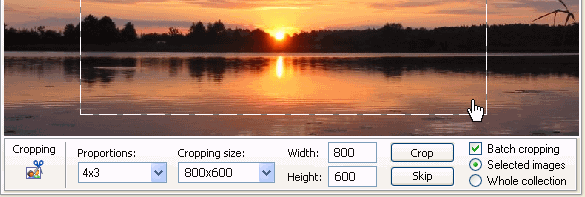
The program features 4 predefined aspect ratios and a number of standard sizes typical of these aspect ratios. If there is no suitable aspect ratio in the list, choose Undefined and use the mouse to select the required area of the image. You can also specify the new size and aspect ratio by entering the dimensions (in pixels) in the edit fields next to the "Crop" button. If preserving the aspect ratio is not vital to you, you can disable this feature and just specify any desired image size. When the size is specified, you can move the selection across the image to achieve the best composition. Having made all necessary adjustments, click "Crop"to crop the image to the selection.
The effect can be successively applied to a group of photos in the semiautomatic mode. While applying it, the program will take into account the position and size of the currently processed shot and will change its proportions if necessary.
To apply cropping to a group of files, you should select the "Batch cropping" item. The sequence of further steps remains the same. When you click the "Crop" button, SnapTouch will crop the current shot and proceed to the next one in the list (in the folder). Clicking the "Skip" button makes the program skip the current photo and move on to the next shot.